Fix Snapchat Planets Not Working – Causes & Solutions
Snapchat planets not working can happen when the Friend Solar System feature is disabled, your Snapchat+ subscription has expired, or the app has a temporary glitch.
You can often fix this issue by checking your Snapchat+ settings, updating the app, clearing the cache, or restarting your phone. If the planets still do not appear, check your friendship profile or contact Snapchat Support for further help.
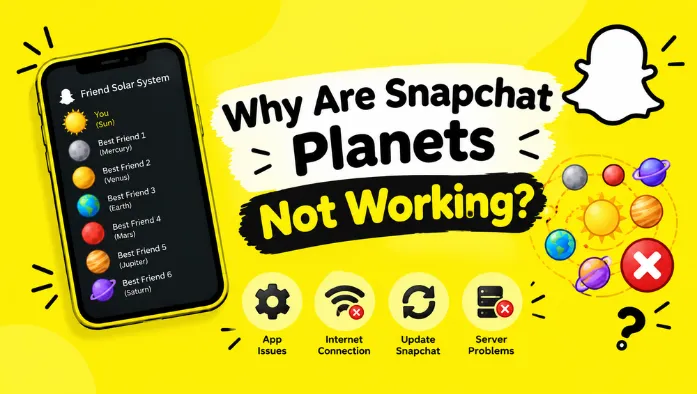
Why Are Snapchat Planets Not Working?
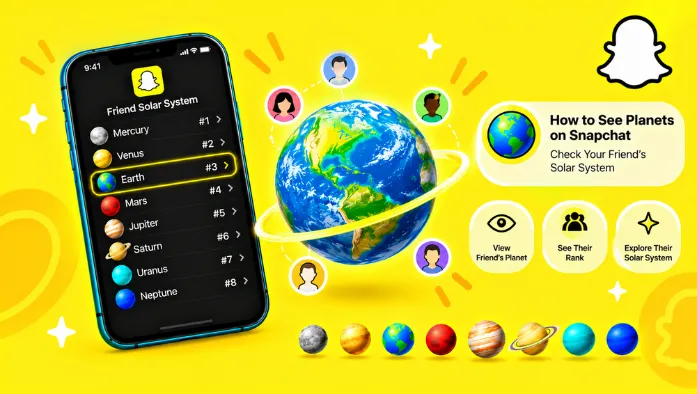
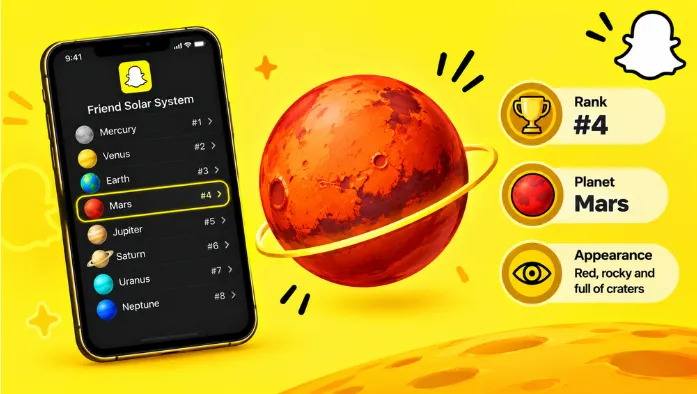
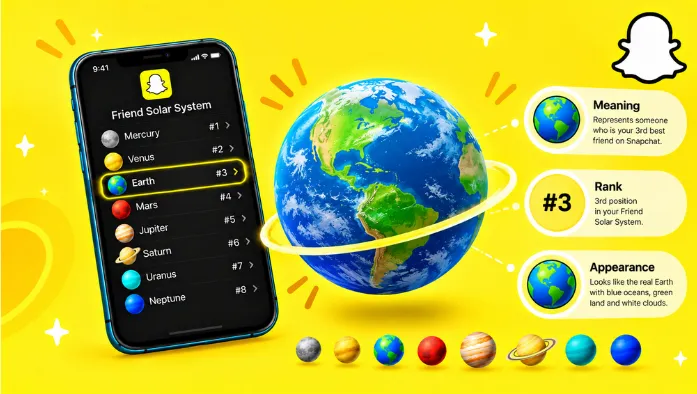
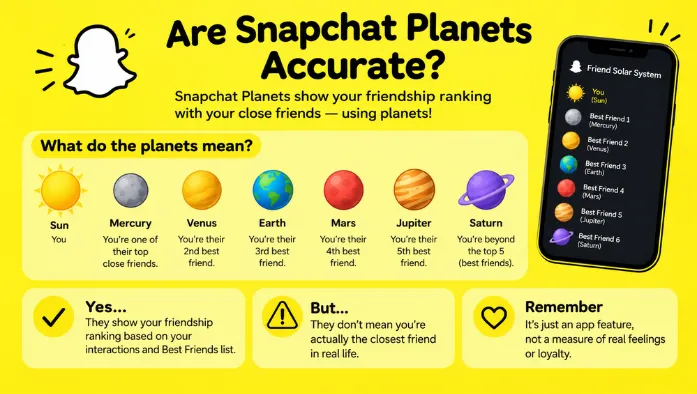
Snapchat planets may stop showing because the Friend Solar System feature is disabled, your Snapchat+ subscription has expired, or the app has a temporary problem. This feature uses planets to represent your position in a friend’s Best Friends ranking.
Before trying advanced fixes, check your Snapchat+ subscription and friendship profile. If the planets are missing, a few simple changes may help restore the feature.
How to Fix Snapchat Planets Not Working
Try these solutions one by one to find out why your Snapchat planets are not working.
1. Check Your Snapchat+ Subscription
Snapchat’s Friend Solar System is a Snapchat+ feature. Open your subscription settings and confirm that your membership is active. If your subscription has expired, renew it if you want to continue using the feature.
2. Enable the Friend Solar System Feature
Snapchat allows users to control the Friend Solar System feature. Open your Snapchat+ settings and look for the Solar System option. If it is turned off, enable it and revisit your friend’s profile.
3. Check Your Friendship Profile
Open Snapchat, go to the Chat screen, and tap your friend’s Bitmoji to view their friendship profile. Look for the Best Friends or Friends badge. If the planet information is unavailable, check your subscription and feature settings.
4. Update the Snapchat App
An outdated app can sometimes cause features to display incorrectly. Open the Google Play Store or Apple App Store, search for Snapchat, and install any available update. Then reopen the app and check the planets again.
5. Clear Snapchat Cache
A temporary cache problem may affect how Snapchat displays certain features. Open Snapchat settings, find the Clear Cache option, and follow the instructions. Clearing the cache does not normally delete your saved Memories, Snaps, or chats.
6. Restart Snapchat and Your Phone
Close Snapchat completely and open it again. If the planets still do not appear, restart your phone. This can resolve temporary app or device issues that interfere with Snapchat’s features.
7. Check Your Internet Connection
A weak internet connection can prevent Snapchat from loading profile information correctly. Switch between Wi-Fi and mobile data to check whether the issue improves. You can also reopen Snapchat after your connection becomes stable.
8. Log Out and Log Back In
If other solutions fail, log out of Snapchat and sign in again. Make sure you know your login details before doing this. After signing in, open the relevant friendship profile and check whether the planet feature is available.
9. Reinstall the Snapchat App
Reinstalling Snapchat may help if the app continues to malfunction. Before uninstalling, make sure your Memories are backed up, and you can access your account. Download Snapchat again from your device’s official app store and check the feature.
Why Is the Friend Solar System Not Showing?
Several issues can explain why the Friend Solar System is missing, even when Snapchat appears to work normally.
Friend Solar System Is Turned Off
The feature may be disabled in your Snapchat+ settings. Check the available controls and turn it on if necessary.
Snapchat+ Subscription Has Expired
If your subscription is inactive, Snapchat+ features may no longer be available. Confirm your membership status before trying other fixes.
Best Friends or Friends Badge Is Missing
The planet display is accessed through a friendship profile. If the relevant badge is missing, the feature may be unavailable for that profile or your account settings may need checking.
Snapchat App Has a Temporary Glitch
Sometimes, Snapchat experiences temporary technical issues. Wait a while, reopen the app, and check again before changing additional settings.
How to Enable Snapchat Planets in Snapchat+
Open Snapchat and tap your profile icon. Enter your Snapchat+ settings and look for the Friend Solar System option. Enable it if the setting is available, then open a friend’s profile to check the planet display. Menu names and availability may vary by app version.
Why Are Snapchat Planets Showing the Wrong Order?
Snapchat planets follow a ranking system based on your interactions with friends. If a planet changes, your friendship ranking may have changed as well. The planets do not always remain the same because your interactions can change over time.
Can You Fix Snapchat Planets Without Snapchat+?
The Friend Solar System is a Snapchat+ feature, so you generally need an eligible subscription to access it. You can still use regular Snapchat features without Snapchat+, but planet rankings may not be available.
What to Do If Snapchat Planets Still Do Not Work
If none of the fixes works, check whether the problem continues after updating and restarting the app.
Contact Snapchat Support
Open Snapchat settings, select Support, and report the missing planet feature. Explain what you have already tried and include any relevant error messages.
Check for Snapchat Service Issues
If several Snapchat features are not working, there may be a temporary service problem. Check Snapchat’s official support channels for updates and try again later.
Frequently Asked Questions
Final Thoughts
If Snapchat planets are not working, start by checking your Snapchat+ subscription and Friend Solar System settings. Updating the app, clearing its cache, and restarting your phone may also help. If the feature remains unavailable, contact Snapchat Support for assistance.